

Windows 10 lost free support in October 2025. On October 14, 2026, paid business security updates (ESU) moved into year two at $122 per PC, and the price doubles again in 2027. For most businesses the cheapest move is to upgrade the PCs that can run Windows 11, bridge only the few that must wait, and securely retire the rest, starting with the hard drives.
- Upgrade
- Bridge with ESU
- Retire and recycle
- Protect the data
On this page
Where Windows 10 stands in November 2026
A year after Windows 10 reached end of support, many offices still have a mix of old and new machines. Some kept Windows 10 running with Extended Security Updates (ESU). Others simply never got around to the upgrade. Here are the dates that matter for a business:
| Date | What it means |
|---|---|
| October 14, 2025 | Windows 10 end of support. No more free security updates, fixes or technical help. |
| October 14, 2026 | Business ESU year two begins: $122 per device, after $61 in year one. |
| October 12, 2027 | ESU year two ends. Free consumer ESU for personal PCs also ends on this date. |
| October 2028 | Business ESU year three, the final year: $244 per device. |
Prices and dates from Microsoft's Extended Security Updates program. ESU is cumulative, so a PC enrolling for the first time in year two pays for year one too.
What does it cost to keep a Windows 10 PC another year?
ESU buys time, not a better computer. It only delivers critical and important security patches. There are no new features and no technical support, and the bill grows every year.
| Office size | ESU year two (already enrolled) | Enrolling now (years one and two) |
|---|---|---|
| 10 PCs | $1,220 | $1,830 |
| 25 PCs | $3,050 | $4,575 |
| 50 PCs | $6,100 | $9,150 |
On top of that sit the slower costs: older hardware that takes longer to boot, batteries that no longer hold a charge, and software vendors that drop Windows 10 from their supported list. For a PC that is already six or seven years old, that money is often better spent on the replacement.
Patched, but standing still
- Security fixes only
- No new features or support
- Price doubles each year
- Every PC must be activated again for year two
No security updates at all
A Windows 10 PC that is not enrolled has received no security patches since October 2025. On a network that also holds customer, payroll or financial records, that is the device to deal with first.
Sort your Windows 10 computers into four groups
Before you buy licenses or new hardware, list every Windows 10 machine and give each one a group. Microsoft's free PC Health Check app shows whether a computer meets the Windows 11 requirements, including a supported processor and TPM 2.0.
- Group 1
Upgrade
Meets Windows 11 requirements and still performs well.
- Group 2
Bridge with ESU
Runs software that is not ready for Windows 11 yet. Set an end date.
- Group 3
Retire
Not eligible, slow, or broken. Replace it and recycle it.
- Group 4
Protect the data
Every drive in groups 2 and 3, before it leaves the office.
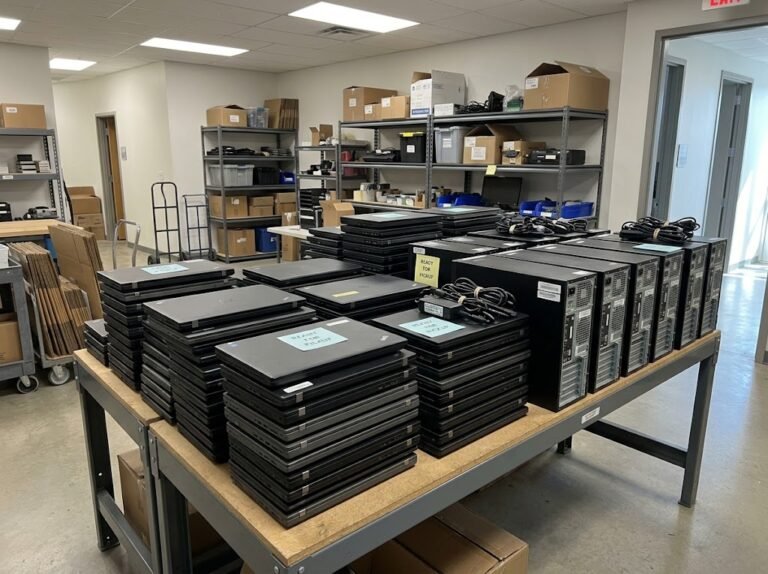
Most offices find that group 3 is bigger than expected. Computers bought before about 2018 usually do not meet the Windows 11 processor list, so the real decision for them is not "upgrade or wait" but "when do we retire them".
How to retire old Windows 10 computers safely
A PC that has been in service since Windows 10 was new has collected years of email, saved passwords, client files and browser history. Retiring it is more than unplugging it.
- List every machine with its asset tag, user and location, and mark which ones you are retiring.
- Back up and move files the user still needs to the new PC or company storage.
- Sign out and release licenses such as Microsoft 365 and other business software seats.
- Remove the PC from your systems: domain, device management, VPN and any shared accounts.
- Decide how each drive will be handled: wiped for reuse, or physically destroyed.
- Group everything for one pickup: towers, laptops, monitors, docks, cables and power bricks.
- Update your asset records so nobody goes looking for a machine that is already gone.
Our guide on how to prepare electronics for recycling covers backups, accessories and asset tags in more detail.
Tip: A Windows reset is not the same as data destruction. For drives that held customer or financial records, plan a proper wipe or physical destruction. Texas law (Business & Commerce Code §72.004) expects businesses to destroy customer records that contain personal information when they are no longer kept.
Common mistakes with old Windows 10 computers
Paying ESU for PCs you will retire anyway
ESU makes sense for a machine you truly need for a while longer. For a PC that is already due for replacement, year two is money spent on a computer that is leaving.
Leaving old PCs in a closet
Retired computers in storage still hold data and still count as your responsibility. They also lose whatever reuse value they had the longer they sit.
Putting computers in the dumpster
Old laptops contain lithium-ion batteries that can start fires in garbage trucks, and electronics contain materials that belong in recycling, not a landfill.
Forgetting the drives inside
Desktops, laptops, and the small form factor PCs behind reception desks all have drives. Count them before pickup so none are missed.
Waiting for the next deadline
The ESU price doubles again in October 2027. Planning the retirement now spreads the work out instead of turning it into a rush.
Windows 10 retirement checklist
Before the old PCs leave your officeDone in this order, a Windows 10 retirement takes days of planning instead of weeks of cleanup.
What about old Windows 10 computers at home?
Personal PCs signed in with a Microsoft account can get free consumer ESU until October 12, 2027. When a home computer is ready to go, CompletePC-World does not collect from homes. Residents can bring old computers to our Saturday residential drop-off in Garland, 10 AM–4 PM. Back up your files and sign out of your accounts first.
Retiring Windows 10 computers in Dallas–Fort Worth?
CompletePC-World provides computer electronics recycling for businesses, with free pickup from offices in Dallas, Fort Worth, Plano, Garland, Irving and across DFW.
Pickup is for businesses only. Residents can use our Saturday drop-off in Garland, 10 AM–4 PM.
- List every PC
- Upgrade what qualifies
- Bridge only what must wait
- Retire the rest securely
Frequently asked questions
Is it still safe to use Windows 10 for business?
Only if the PC is enrolled in Extended Security Updates. Windows 10 PCs without ESU have not received security patches since October 14, 2025, so they should be upgraded or retired, especially if they handle customer or financial data.
How much does Windows 10 ESU cost in 2026?
Business ESU year two runs from October 14, 2026 to October 12, 2027 and costs $122 per device. ESU is cumulative, so a PC enrolling for the first time pays for year one ($61) as well. Year three costs $244.
How do I know if a computer can run Windows 11?
Run Microsoft's free PC Health Check app. Windows 11 needs a supported processor and TPM 2.0, among other requirements. Many computers bought before about 2018 do not qualify.
What should a business do with Windows 10 computers that cannot upgrade?
Replace them, move the files you need, release software licenses, decide how each hard drive will be wiped or destroyed, and recycle the hardware through a business electronics recycler instead of storing it or throwing it away.
Does resetting Windows erase the hard drive?
A reset is not the same as data destruction. For drives that held customer, payroll or financial records, plan a proper wipe or physical destruction before the computer leaves your business.
Do you pick up old computers from homes?
No. Pickup is for businesses only. Residents can drop off old computers at our Garland location on Saturdays, 10 AM to 4 PM.